Thursday, 15 September 2016

How To Use Reliance Jio 4G Sim In Windows Phone & Modem/Dongle Trick


Use Reliance Jio 4G Sim In Windows Phone & Modem/Dongle. How to use Reliance Jio Sim in Windows Phone & Modem (Full Guide), Use Reliance Jio Sim in windows phone, How to use Reliance Jio Sim in Modems. Hello, Guys we are back again with awesome trick, Many People Are Wondering If They Able To Use Reliance Jio Sim On Windows Phone Such As Lumia Series Etc Or On Pc By Using It With Dongle Or Modem.So Here We Are Going To Help You If You Are Having Same Type Of Questions In Your Mind. Not only windows phone if you are having a Modem and want to use JIO SIM in it, then we are also having a solution to it. For that you need to read the post carefully, as it is quiet tough to use it in a Modem, but don’t worry we will guide you for each steps


How to Use Reliance Jio 4G Sim In windows Smartphone :-
1. Open setting Option from Your windows Apps List.
2. Then select Enable Cellular data > and then Select 4g or High Speed Connection.
3. After doing this Select Sim settings and then Select Add Vpn.
4. In Vpn Field Just do this changes Make APN as Jionet and Select IP type as IPv4.
5. Don’t Touch any other Fields just leave it blank and save the connection.
6. Restart Your mobile and Turn on Your data and enjoy 4g Speed.
7. Enjoy Jio 4g In your windows Phone.

How to use reliance Jio 4G sim in Dongle or Modem:-
1. Insert Activated reliance Jio sim in Dongle/Net setter/Modem.
2. Open settings option of your dongle/Modem.
3. Now make New Profile settings by Clicking create new option.
4. Enter Name – Unlimitedloots or any.
5. Enter Apn as Jionet
6. Leave other fields and save this profile.
7. Now connect internet from this apn and enjoy Jio sim in Your modem/ Dongle / Net setter.

Friday, 2 September 2016

How To Make A Free Virtual Credit Card (VCC) from Revoult App


Virtual Credit Cards are used widely over the internet, legal and maybe not so legal activities. Virtual Credit Cards are also known as VCCs and can come in different types, PrePaid & TopUps. As you might be able to gather, PrePaid are paid for at the time you get/buy them, whereas TopUps are normally free to get and are easier to use.

The Virtual Credit Card we will be getting for free today will be one that can be topped up via bank accounts for a small fee, however, they can be used on some free trial offers that don’t require checks, but not many of those exist. I have confirmed that these do not work for: Google Cloud Computing & Amazon Web Services.


Follow the Steps Below to get the Free VCC :-

1. Download the Revolut App  Click Here

2. Create a Free Account 

3. Verify your email & Phone Number

4. Once you confirm your account, you can go to the Cards Tab to get your Virtual Credit Card’s Details.

5. That's it. Enjoy. :)

Thursday, 1 September 2016

How to Use Reliance Jio 4G Sim in 3G Phone Full Guide


Guys today i am going to share a new trick about How to Use Reliance Jio Sim on 3G phone. As you know Reliance launched Jio 4G Sim with Lyf phone and with Reliance Preview Offer absolutely free by which you can use unlimited 4G internet with unlimited free call only on Reliance Jio Sim so here we made a trick in which you easily Use Reliance Jio Sim in 3G Phone.


Warning :- use this trick with your own risk because this Method Is rittle bit risky , so please try this at your own risk , we will not be responsible for any damage of your phone.


Follow the Steps Below :-

1. firstly Download & Install Shortcut Master Lite App by Clicking here
2. Open the app, click on menu button then, Search for ‘Service Menu’  Or ‘Engineering Mode’
3. Once you found the Engineering Mode then open it and Select LTE Bands and hit save
4. Now reboot your device, then inset jio sim and check if you have network  or not
5. If the above doesn’t work then Dial *#2263# then select Menu and click back again then select Menu.
6. Now go to key Input And Enter “0000” without quotes, Then wait for couple of seconds ,after that you will get a Popup.
7. Select UE Settings From that Popup, after that Select setting > protocol > NAS > Network Control > Band Selection > LTE Band > The Select “Band 40”.
8. After doing above settings turn off your phone and insert jio sim then swich on and wait few minutes
9. Withing few minutes you will see LTE in your phone
10. That’s it. Now enjoy unlimited internet with jio on your 3G mobile.

Note :- You can’t call anyone using jio nework because, Calling feature Needs voLTE and 3G devices are not capable of this. So if you want to call using LTE network then you can do that by using jio join app


Sunday, 14 August 2016

How to Use Two WhatsApp Accounts in one Android Mobile Phone [No Root]


Today i am going to share amazing Whatsapp Trick for all Android Smartphone Users. Now Run Two Whatsapp Account in Same Smartphone Using a Simple Trick. Now a days all peoples are using Whatsapp. So i am back with amazing trick. Hope you all like this. I thought all Whatsapp users think that they can run 2 Whatsapp account in a same Android smartphone and also you tried that but you did not got success. But don't worry here i am for amazing trick. I will show you how you can install and run 2 Whatsapp Account in Same Android Mobile. There is no need to any rooted mobile. You can run 2 whatsapp account in any android handset. If you want to run multiple Whatsapp account, So follow our below steps carefully and create and run 2 Whatsapp account in your mobile.


Steps to Install and Run 2 Whatsapp Account in Same Android Mobile :-

1. Firstly Download GB Whatsapp app from here –  GB Whatsapp (New)

2. Now just install GB Whatsapp app in your mobile which you have downloaded from first step.

3.After Install GB Whatsapp  app open the app and enter your Mobile Number in it, which you want to use as secondary whatsapp account. (First one you are already using in original Whatsapp)

4. After it, it will send otp code into your Mobile Phone and it will automatically verify it in some seconds like normal whatsapp, no need to worry about it.

5. Now after successfully verification your 2nd whatsapp account is ready to user.

6. Now you are running 2 whatsapp accounts in your single android mobile phone. 

7. So try out this method, it will surely work for you if you wants to use 2 Whatsapp accounts in one android phone.


Features of Dual Whatsapp App :-
- No Rooted Mobile needed.
- No obsolute error like Og Whatsapp.
- Working smoothly.
- Latest APK  updated.
- Calling feature Pre activated.
- Material design.
- Hide last sen like Whatsapp Plus.
- Hide blue tick, second tick, typing for chat, groups.
- Copy messages without Date & Time (No Bug like Normal Whatsapp).
- Share big files with less limit.
- Better looking and some MODs.
- Custom icon.
- Anti ban enabled – No ban issues like Whatsapp Plus.
- Calling feature enabled – No need to worry about calling feature.
- Updated design with bug fixes – Fully stable. All things & features working.
- Latest mod – Including with all new features of whatsapp.
- Latest Whatsapp mod released (Based on Latest Version).


Saturday, 30 July 2016

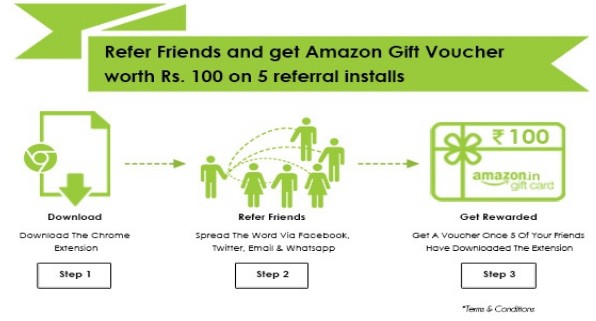
CValue Extension Loot – Refer 5 Friends and Get Rs 100 Amazon.in Voucher


CValue Extension – Refer 5 Friends and Get Rs 100 Amazon.in Voucher. CVALUE is a price comparision website which helps you find the best prices of products across the biggest Indian online shopping portals like Amazon, Flipkart, Snapdeal, Myntra etc. Well CValue website has come up with Referral program where you will get the Rs 100 Amazon.in Gift card for just referring 5 friends.


How to Get Refer and Earn Rs 200 Amazon.in Gift card ?
1. First of all, Visit offer Page here (From PC/Laptop)
2. Scroll down and install the chrome extension.
3. Add to chrome.
4. Install the Cvalue chrome extension Successfully.
5. Now goto Cvalue.in from here.
6. Now you will see “Refer & Get Amazon voucher”.
7. Enter your name & email and submit it and get your referral link.
8. Now share your referral link with your friends or family members.
9. Once your 5 friends install this chrome extension, You will get the Rs 100 amazon.in voucher.

Terms & Conditions:-
1. Amazon gift voucher applicable only upon 5 referral installs i.e. 5 installs = I voucher.
2. More, The Merrier – Spread the word, get more installs and more vouchers.
3. You can have one unique login. Creating duplicate emails, signing-in from multiple devices, multiple sign-ins from a device and having more than one account per user
4. in order to unduly gain referral benefits is not appropriate and we will not honor such codes.
5. For any further clarification, you may please get in touch with us atcontact@cvalue.in.


Tuesday, 26 July 2016

How to Download & Install Prisma App in Android Officially


Prisma is an app which transforms your photos into artworks using the different styles of famous artists such as Munk, Picasso as well as world famous ornaments and patterns. A unique combination of neural networks and artificial intelligence helps you turn memorable moments into timeless art.


Prisma App on iOS 
- Over 400 million photos have been ‘prismed’
- It’s been downloaded over 10.6 million times on iOS alone
- The are over 1.55 million daily active users
- Daily downloads maxed out about 700k.


How To Download, Install & Use Prisma App in Android :-

1. First download - Prsima app for Android

2. Install the Prisma app.

3. That’s it you are done.

4. Now enjoy the Prisma effects in your Android smartphone.

5. Now it’s time to be an artist and turn your photos into awesome artworks using Prisma app.

6. Once you convert your original image into the prismatic image, you can share image directly to social media platforms like Facebook, Instagram, etc. Also, you can save your images to your gallery in your android smartphone.

Saturday, 16 July 2016

How To Download And Play ‘Pokemon Go’ On Android and iPhone in India


‘Pokemon Go‘, is a virtual reality application that turns your smartphone into a Pokedex that you can use to catch Pokemon. The Pokemon are spread out all over your city and you will need to step out into the ‘Battlefield’ to catch enough Pokemon. In simple terms, Pokémon Go uses your phone’s GPS and clock to detect where and when you are in the game and make Pokémon “appear” around you (on your phone screen) so you can go and catch them.  As you move around, more types of Pokémon will appear depending on where you are and what time it is.


How to download and install ‘Pokémon Go’ on Android?
(or)

Download the Pokémon Go APK file:-
1. First, you need to allow your Android device to install and run apps downloaded from other places.
2. Go to Settings, Security and allow for the installation of apps from ‘Unknown Sources’.
3. Now you need to download the Pokémon Go APK file.
4. On your Android device, go to the ‘Pokémon Go’ APK web page and click on ‘Download APK’. You can download the game’s APK from here.
5. Select ‘OK’ and Pokémon Go will download.
6. Once it’s downloaded, then select ‘Install’.
7. Pokémon Go will now install, letting you play right now.


How to download and install Pokémon Go on iPhone?

If you have an iPhone or another iOS device, then the process for installing Pokémon Go is slightly different. While Pokémon Go is available on the App Store, if it’s not available in your country follow our instructions on how to download and install it.

Step 1 :- Log out of your Apple ID

1. First of all, you’ll need to make your iPhone believe you’re in a region that can download Pokémon Go.
2. Go to Settings on your iPhone, click on ‘Apple ID’ and then select to sign out.
3. Now go back into Settings and select General > Language & Region.
4. Set your region as US, New Zealand or Australia – all of these regions can download Pokémon Go.

Step 2 :- Open up the App Store

1. Go to ‘App Store’ and search for ‘Pokémon Go’.
2. If it doesn’t appear, choose a free app to download and select ‘Create new Apple ID’.
3. Go through the process of creating an Apple ID and select ‘None’ in the Billing menu and add a US, New Zealand or Australian address.

Step 3 :- Download Pokémon Go onto your iPhone

1. Now you can download and install Pokémon Go onto your iPhone or iPad.
2. Once Pokémon Go is released in your region, you can sign back in with your Apple ID – though you may need to reinstall Pokémon Go.
3. Luckily your data is saved to the cloud, so you’ll be able to play Pokémon Go where you left off.

Saturday, 25 June 2016

JangoMoney Loot - Get Rs.63 on Sign Up + Refer and Earn Unlimited Money in Bank


JangoMoney - The Ultimate Money Making App. This app is Just Like a Tree - You make hard work in beginning and as it grew up it will be able to fed you with the Fruits on it. Normally there are many apps from which we are earning Free money direct in Bank. This app has upto 8 level earning.


Follow The Steps Below :-

1. Simply Download Jango Mobile App : Click Here

2. Let it be Installed and Now Open It.

3. Click On "Get Started" option on the very first Page.Now Fill Up your Personal Details (Make Sure You Use Your Real Name as it is in your Pan Card / Bank Account).

4. Now On the Next Page It will Ask you to Enter the Refer ID of Sponsor > Enter Code : 1489 and Click On Submit (Important to Get 1$ joining Bonus)

5. Now Accept Their Terms of Usage by clicking On "Accept" Button.

6. Now Comes the Main and Boring Part of the app. Now it will ask you to download some of the known Android apps given one by one.

7. This Is the Most Important part and Make Sure you Install All the Apps One by one Given to you > Make Sure After Installing you Open it for at least 1 minute.

8. It Maybe very boring for you and you may think that it will ruin your Data Plan but imagine its the app which require hard work for just one time . Be patience and Download all 5-6 Apps .

9. After completing the offer you will see this screen .Click On Start button and Get into the world of unlimited Money making system .

10. Try to share this app with all possible friends and get extra bonus on every sign up and Offer Complement.

11. Tell your friends about this post on our blog to guide them .So they can know it better about the app.
Note - "If you don't Complete the task of downloading apps you can't earn by refers . So its necessary to download all the apps to get started."


How It Works On Referrals ?

In this app ,You Not only earn money for Direct Referrals but you can also make money by indirect Referrals too. Just like Networks of Amway ,RCM ,ETC (You must have heard about them) . They are an example of Networking System that pays but here its Easy and no investment needed at all. If your Referred Person works Fine and Reaches at a Good Level them Definitely you will also earn from its Referrals. Just See how :-


For Example - If Someone Referred You and you used his / her's referral code then he / she will become your Sponsor and He will get a Commission also on your Joining. And when you refer others then not only you will earn but your Sponsor will also get some Commission added to his Account. 


Sunday, 12 June 2016

How To Get Free Virtual Credit Card Online – June 2016 (Get VCC for Free)


[*updated in June 2016*] How to make virtual credit card online instantly: It’s very easy to create virtual credit card / debit card in SBI, ICICI, Axis Bank, HDFC, PNP, UBI using its Net Banking facility. But if you are a teenager & don’t have any saving bank account, then keep reading… 


Apps To Make Virtual Credit Cards For Free
1) Freecharge (GoMaster card)  
2) Oxigen wallet (prepaid card)
4) Udio
5) Lime App by Axis Bank (Not Recommended)
6) Pockets App by ICICI Bank:
So these are the best android apps to make a virtual credit card for free in India for online shopping purposes. If I have missed any app, then let me know. Thanks

More Details will be added soon


Tags :- free VCC, Free virtual credit card, free vcc 2016, how to get free vcc, get free vcc 2016, how to get free vcc 2016